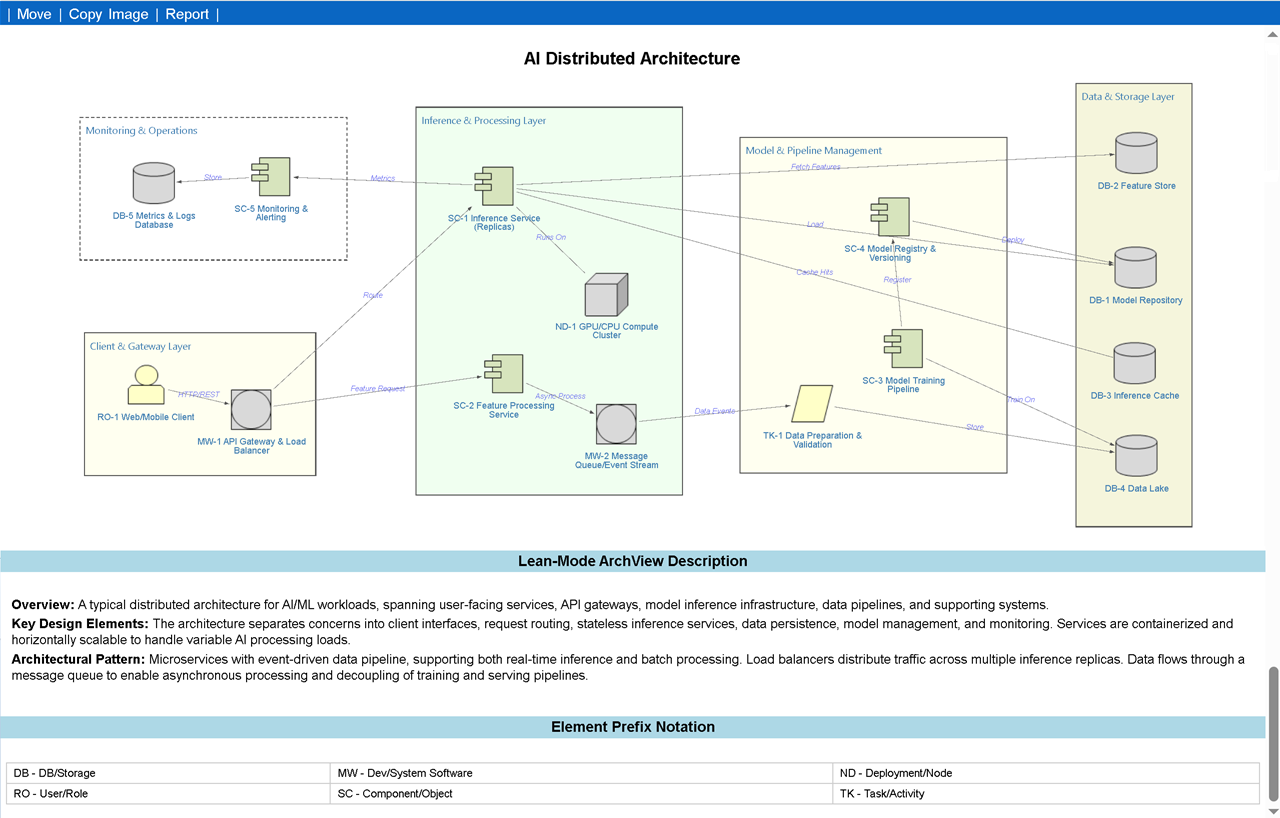
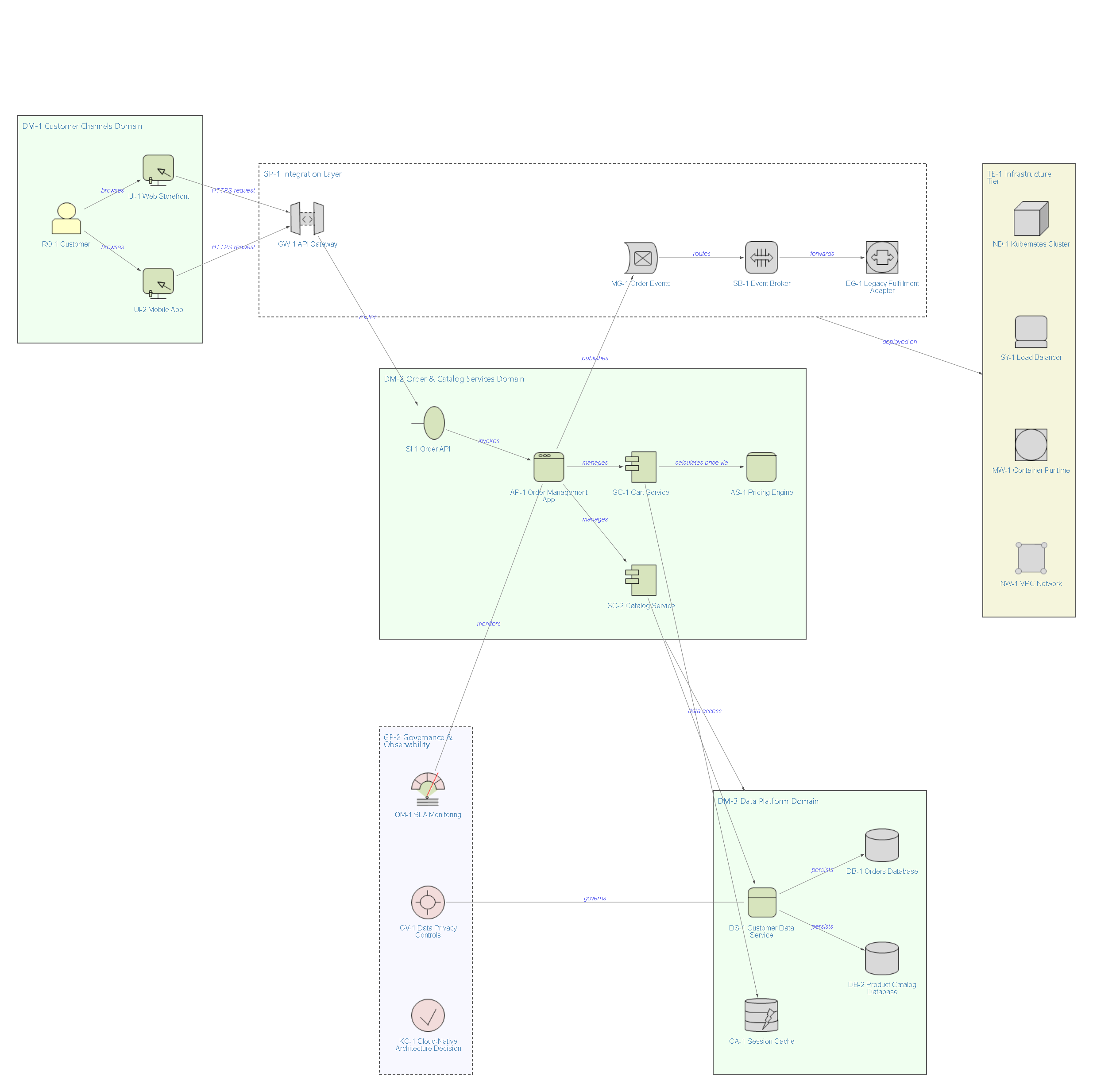
ArchView generates IT architecture diagrams and model views in a node-image style, primarily at the enterprise solution architecture (ESA) level, the space between enterprise architecture and solution design. Ask for an architecture diagram, a solution architecture view, an enterprise architecture model, or something like “visualize this system’s architecture,” and AI will map your solution onto a set of ESA elements (services, data stores, gateways, roles, and so on), generate a self-contained HTML view with zoom, PNG/PDF export, and a properties panel.
It’s built for large or complex solutions that need a clear, maintainable view, not for detailed-design or code-level diagrams (class diagrams, sequence diagrams), and not for quick informal sketches.
In the Claude app or claude.ai (browser or desktop)
archview.zip.That’s it. From then on, just ask Claude for an architecture diagram or view in any conversation, and it will use ArchView automatically when relevant.
Team/Enterprise: an organization owner can instead provision ArchView for everyone under Organization settings > Skills.
For a quick architecture view, simply submit your request, and AI will generate a well-structured diagram for you.
If your solution is highly complex or you need a more refined result, you can take a multi-step approach. Here is a brief guide:
Gather what you have: ArchView works from whatever you already have, none of this is required, but the more context you give, the better the first draft
Ask for the view: Just describe what you want in plain language. For example: “Create an architecture view for this system: [paste description or attach a diagram]”
Say how much guidance you want (optional)
Tell AI your scope, if it matters
Review the output
Ask for changes, if any
Build out the full model, if you need one
You can have different detail-level views. For example, a lean-mode view with fewer elements, a succinct outline view, a view with detailed architectural analysis, or a full set of model views.
For a bit more detailed step-by-step instruction, see this link .
There are two ArchView Modes to choose from. The AI will select the ArchView mode to best fit your needs.
| Mode | Lean | Standard |
|---|---|---|
| Audience | General users, developers | Experienced architects and solution experts who require an architecture model beyond a simple diagram or view |
| Scope | Agile thinking, simple diagramming | ESA model, or profile views that cover EA, business, software architecture or design, integration, enterprise AI, infrastructure, microservice, event architecture, etc. |
| Level of details | Simple, concise | Different level of thinking,from basic description and properties to detailed architectural metrics, tradeoffs, techniques, and governance, adapted to each solution’s context and style. |
| Number of elements | 4-12 elements | Selected elements from 32 base elements plus assistive elements, according to architectural style and solution requirements |
Because of the auto-layout, elements in the output view may not appear in the expected order or position. However, you can customize the layout by moving groups or nodes to their desired positions directly in the generated HTML. , improving the layering order and overall visual presentation. Archview is primarily designed to provide architectural clarity rather than visual appeal. However, the layout and visual style will be further refined and enhanced in future releases.
This is an early version of ArchView, and it’s still evolving. Your feedback is welcome.